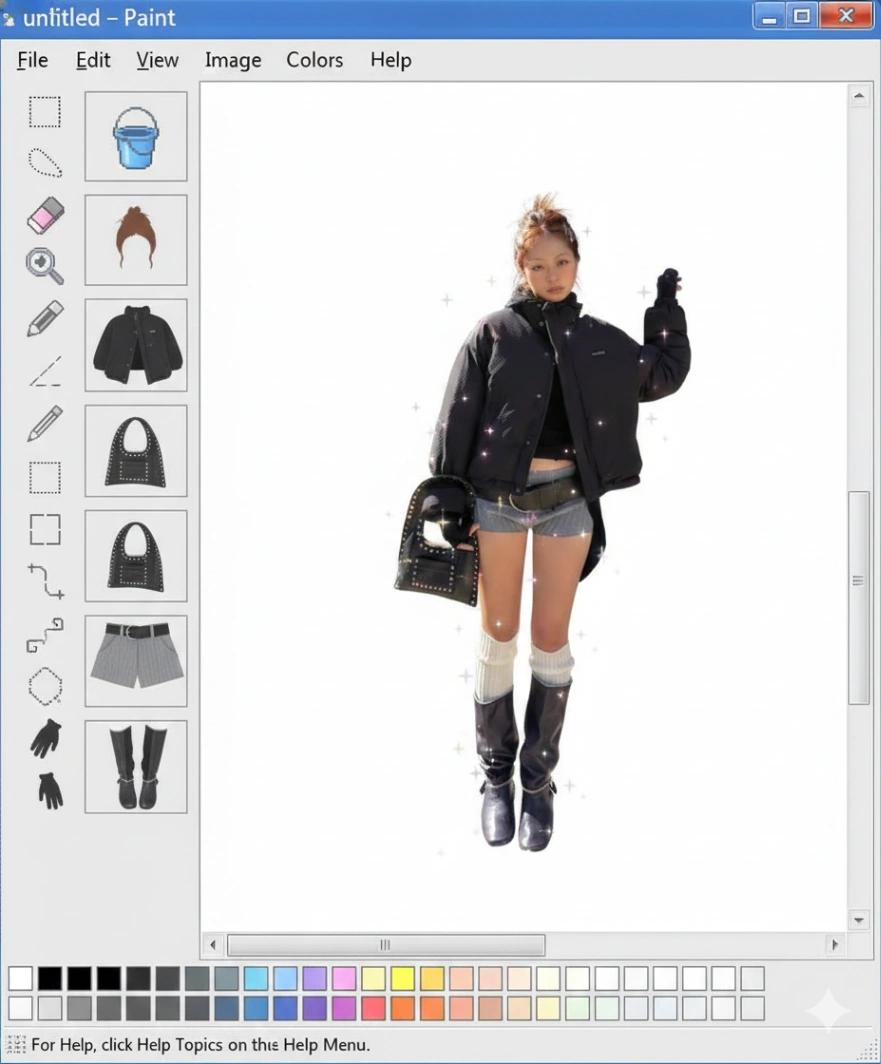
Early 2000s Microsoft Paint UI OOTD Layout
Image
GeminiPrompt Type: Image generation prompt
Click to try on Gemini
1
Number of original images required
648
Total number of views
Create an image that perfectly recreates the layout of early-2000s Microsoft Paint exactly like the reference image. The entire image must appear as a screenshot of the MS Paint program. Follow this structure and placement precisely:
🔻 TOP BAR (EXACT PLACEMENT)
– Classic Windows XP title bar
– Title text: “untitled – Paint”
– Standard Windows XP buttons on the right (minimize, maximize, close)
– Menu bar directly under title bar with these exact items:
File | Edit | View | Image | Colors | Help
🔻 LEFT TOOLBAR (STRICT LAYOUT)
A vertical column of classic MS Paint icons with correct spacing and order, including:
Free-select (dotted lasso)
Select rectangle
Eraser
Fill bucket
Eyedropper
Magnifier
Pencil
Brush
Spray paint
Straight line
Curve line
Rectangle shape
Polygon
Ellipse
Rounded rectangle
Icons must be pixel-style and positioned exactly like old MS Paint.
🔻 LEFT OUTFIT PANEL (STRICT GRID)
To the right of the toolbar, create a tall vertical panel of rectangular slots, each the same size.
Inside each slot, place simplified outfit thumbnails like a paper doll system:
Slot 1 — Hair option
Slot 2 — Top/clothing
Slot 3 — Bag
Slot 4 — Pants
Slot 5 — Shoes
Slot 6 — Optional accessory
Each thumbnail must be centered inside its slot and glow slightly, matching the reference.
Spacing between slots must be equal.
🔻 MAIN CANVAS AREA (CENTER)
Inside the white canvas area, place the subject from the user-uploaded image, preserving:
– Face exactly
– Hair silhouette
– Body proportions
– Clothing colors and textures
– Overall realism (no cartoon style)
The subject must stand upright, centered inside the canvas, slightly glowing with sparkles similar to the reference.
Add soft bloom and Y2K sparkly highlights on shoes, bag, and hair.
🔻 BOTTOM COLOR PALETTE (EXACT GRID)
At the bottom of the window, include the classic MS Paint color palette:
– Two horizontal rows of small rectangular color swatches
– Colors must follow Windows XP Paint palette:
white, black, gray, red, yellow, green, blue, purple, etc.
– Place them in a tight grid with a thin border, exactly like old Paint.
Below the palette, include the footer text:
“For Help, click Help Topics on the Help Menu.”
🔻 STYLE REQUIREMENTS
– Retro Windows XP 2000s aesthetic
– Crisp UI elements, but soft glow on the subject
– Slight dreamlike sparkles
– Subtle chromatic aberration
– Pastel, Y2K-inspired mood
– Maintain photorealism of the subject
– Do NOT alter the subject’s clothing or pose unless needed for clean composition
– Do NOT remove or add UI elements not listed above
– Do NOT modernize the UI
🎯 FINAL OUTPUT GOAL
A photorealistic subject placed inside a perfectly recreated early-2000s MS Paint window with precise UI layout, exact button spacing, a vertical outfit selection panel, and a nostalgic Y2K sparkle edit—exactly matching the structure of the reference image.